What Is OCR and How Does Image-to-Text Work?
Learn what OCR is, how image-to-text technology works, what affects recognition accuracy, and when to use OCR for screenshots, photos, scans, JPGs, and PNGs.
Try Pull2.me Creator Tools
Use Pull2.me browser tools for media downloads and everyday creator workflows.
Explore Creator ToolsOCR stands for Optical Character Recognition. It is a technology used to detect readable text inside images and convert that text into characters that can be selected, copied, edited, searched, or reused.
In simple terms, OCR turns text that exists only as pixels into usable digital text.
For example, OCR can help extract text from:
- Screenshots
- Photos of documents
- Scanned pages
- JPG images
- JPEG images
- PNG files
- Receipts
- Notes
- Forms
- Printed pages
You can try this directly with the Pull2.me Image to Text tool.
Quick Answer
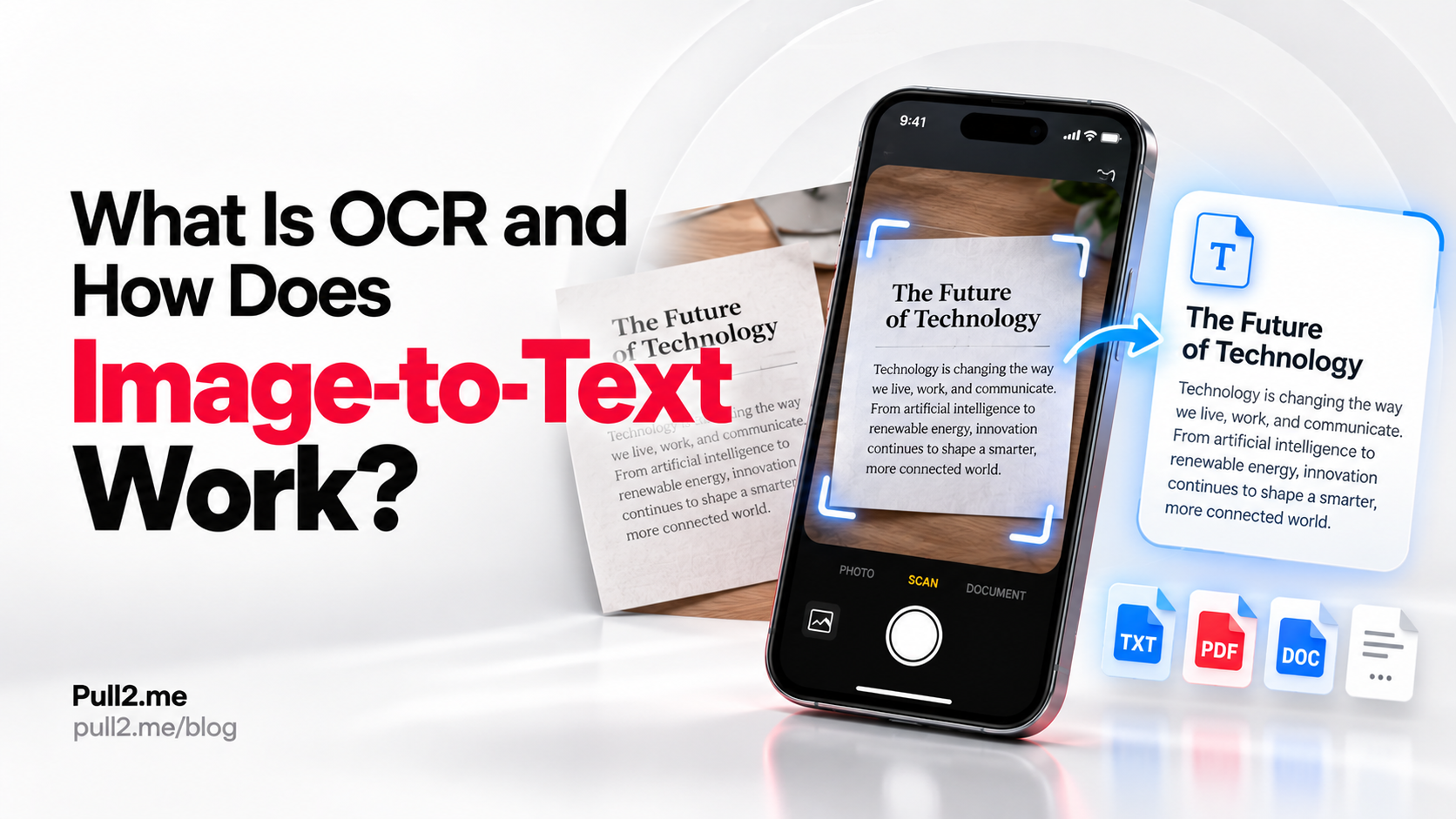
OCR works by analyzing the visual patterns inside an image, identifying areas that appear to contain characters, and attempting to recognize those characters as letters, numbers, punctuation, and words.
A typical OCR workflow looks like this:
- Upload an image containing readable text.
- The OCR system analyzes the image.
- It detects possible text regions.
- It attempts to recognize individual characters and words.
- The recognized result is converted into selectable text.
- You review, copy, edit, or export the result.
OCR accuracy depends heavily on the quality of the original image.
What Does OCR Mean?
OCR means Optical Character Recognition.
The word "optical" refers to analyzing visual information.
"Character recognition" refers to identifying written or printed characters such as:
- A–Z letters
- Numbers
- Punctuation
- Symbols
- Words
An image itself normally contains pixels rather than editable text.
OCR attempts to interpret patterns in those pixels and convert them into machine-readable characters.
What Is Image-to-Text?
Image-to-text is the practical result of OCR.
An image-to-text tool takes an image containing visible text and tries to convert that text into selectable digital content.
For example, a screenshot may visually contain:
Order Number: 48291
But to a computer, that screenshot may initially be only an image.
OCR can attempt to recognize the letters and numbers and return:
Order Number: 48291
as actual editable text.
How Does OCR Work?
Modern OCR systems can involve several stages.
The exact implementation varies between OCR engines, but the overall process commonly includes image analysis, text detection, character recognition, and output generation.
1. Image Input
The process starts with an image.
This might be:
- A screenshot
- A phone photo
- A scanned document
- A JPG
- A PNG
- Another supported image format
The quality of this input has a major effect on the final result.
2. Image Analysis
The OCR system analyzes the visual structure of the image.
It may examine:
- Brightness
- Contrast
- Edges
- Shapes
- Lines
- Character-like patterns
- Text regions
This helps separate possible text from backgrounds, photographs, decorations, and other visual elements.
3. Text Detection
The system attempts to determine where text exists in the image.
For example, a document photo might contain:
- A title
- Several paragraphs
- Page numbers
- A logo
- A photograph
OCR needs to identify which areas contain readable characters.
4. Character Recognition
After locating potential text, the OCR engine tries to determine which characters are present.
It may need to distinguish between similar-looking characters such as:
0andO1,I, andl5andS8andB
This is one reason OCR results are not always perfect.
5. Word Reconstruction
Recognized characters are combined into words and lines.
Depending on the OCR engine, language information and surrounding characters may help determine the most likely result.
6. Text Output
The recognized content is returned as digital text.
You can then:
- Copy it
- Edit it
- Search it
- Save it
- Paste it into another application
The Pull2.me Image to Text tool can be used for supported browser-based OCR workflows.
What Types of Images Work Best With OCR?
OCR usually works better when text is easy to read visually.
Good OCR input often has:
- Sharp text
- Large enough characters
- Strong contrast
- Even lighting
- Minimal blur
- Straight alignment
- Simple backgrounds
A clean screenshot or scanned page may therefore be easier to process than a blurry photograph taken at an angle.
What Makes OCR Less Accurate?
Several image conditions can reduce recognition quality.
Blur
Blur can remove the small visual details that distinguish one character from another.
For example, blurred letters such as c, e, and o may become difficult to distinguish.
Low Contrast
OCR can struggle when text and background have similar brightness or colors.
Dark text on a light background is often easier to recognize than faint text over a detailed image.
Small Text
Very small characters contain fewer visible details.
Increasing image resolution or using a clearer source can sometimes improve recognition.
Shadows and Glare
Photos of documents can contain shadows, reflections, or bright glare.
These areas may hide parts of letters or reduce contrast.
Angled Photos
If a document is photographed at an angle, lines of text may become distorted.
A flatter, more direct photo usually gives OCR a better view of the characters.
Unusual Fonts
Decorative, handwritten, highly stylized, or very thin fonts may be more difficult to recognize than clear printed text.
Complex Backgrounds
Text placed over photographs, patterns, gradients, or graphics can be harder to separate from the surrounding image.
Compression Artifacts
Highly compressed images may contain blocks, ringing, or blurred edges around characters.
These artifacts can reduce OCR accuracy.
Is OCR Always Accurate?
No.
OCR is a recognition process, not a guaranteed transcription.
Even high-quality OCR systems can make mistakes.
Common errors include:
- Missing words
- Wrong characters
- Incorrect punctuation
- Extra spaces
- Missing spaces
- Incorrect line breaks
- Confused numbers and letters
For important information, always compare the extracted text with the original image.
Screenshot OCR
Screenshots are often good OCR sources because the text is generated digitally.
They frequently have:
- Sharp edges
- Consistent fonts
- Strong contrast
- Minimal perspective distortion
- No camera blur
If you want to extract text from a screenshot, use the Screenshot to Text tool.
Common uses include copying text from:
- Apps
- Websites
- Messages
- Social media posts
- Error messages
- Online documents
Photo OCR
OCR can also work with photos.
For example, you may photograph:
- A printed document
- A sign
- A receipt
- A textbook
- A note
- A form
However, phone photos can introduce extra challenges such as:
- Blur
- Shadows
- Perspective
- Uneven lighting
- Background objects
For photo-specific OCR, use the Photo to Text tool.
Scan OCR
Scanned documents can work well with OCR because scans are often:
- Flat
- Straight
- High contrast
- Consistently lit
- High resolution
This makes printed characters easier to analyze.
If you are working with scanned images, use the Scan to Text tool.
JPG and JPEG OCR
JPG and JPEG images are commonly used for photos and compressed images.
They can work well with OCR when the compression level is reasonable and the text remains sharp.
Heavy JPEG compression can introduce visual artifacts around letters.
For these files, you can use:
PNG OCR
PNG images are frequently used for screenshots, interface captures, and graphics.
Because PNG can preserve sharp edges without JPEG-style compression artifacts, it can be well suited to text-heavy screenshots.
Use the PNG to Text tool for supported PNG images.
Picture to Text
"Picture to text" is another common way to describe OCR.
The process is the same: an image containing readable characters is analyzed and converted into digital text.
Use the Picture to Text converter for supported image files.
Can OCR Read Handwriting?
OCR is usually strongest with clear printed or digitally rendered text.
Handwriting recognition can be more difficult because handwritten characters vary greatly between people.
Challenges include:
- Connected letters
- Inconsistent spacing
- Different writing styles
- Slanted characters
- Abbreviations
- Poor pen contrast
Some recognition systems are designed specifically for handwriting, but results can vary considerably.
Can OCR Preserve Formatting?
Not always.
OCR focuses primarily on recognizing text.
The output may not preserve:
- Fonts
- Text size
- Columns
- Tables
- Exact spacing
- Page layout
- Colors
- Alignment
The extracted text can therefore be correct while the formatting looks different from the original document.
OCR vs Copying Text Normally
If text already exists as normal selectable HTML or document text, you usually do not need OCR.
You can simply select and copy it.
OCR becomes useful when the text is trapped inside an image.
Examples include:
- Screenshots
- Scanned paper documents
- Photos
- Image-based PDFs converted to images
- Social media images
- Graphic designs
OCR vs Manual Typing
Without OCR, extracting text from an image may require manually retyping everything.
For a short sentence, manual typing may be easy.
For a full page or long document, OCR can save significant time.
However, the OCR output should still be reviewed for recognition errors.
How to Improve OCR Accuracy
If the result is poor, improving the source image may help.
Use a Clearer Image
Choose the highest-quality version available.
Avoid screenshots that have been repeatedly compressed or resized.
Crop the Image
Remove unnecessary background areas.
This can make the text region easier to analyze.
Straighten the Document
Try to keep photographed pages flat and aligned with the camera.
Improve Lighting
Avoid strong shadows and reflections.
Increase Contrast
Clear dark text against a light background can be easier for OCR to recognize.
Avoid Excessive Compression
Use a version of the image that preserves character edges whenever possible.
Review the Result
Always compare the output against the original when accuracy matters.
How to Extract Text From an Image With Pull2.me
To run OCR with Pull2.me:
- Open the Image to Text tool.
- Choose a supported image from your device.
- Run OCR.
- Wait for the image to be analyzed.
- Review the recognized text.
- Copy or export the available result.
You do not need to manually retype the text from the image.
Can I Use OCR on iPhone?
Yes.
You can open Pull2.me through Safari or another supported modern browser on your iPhone.
Choose an image from your device and run OCR directly through the browser.
This can be useful for:
- Screenshots
- Photos of documents
- Notes
- Receipts
- Saved images
Can I Use OCR on Android?
Yes.
Pull2.me can also be used through Chrome and other supported modern Android browsers.
Choose the image stored on your phone, process it with OCR, and review the recognized text.
Can OCR Read Multiple Languages?
OCR language support depends on the recognition engine and configuration used by the tool.
Recognition generally works better when the OCR engine knows the language or character system it should expect.
Different languages may require different recognition models.
If you are extracting multilingual text, review the output carefully because recognition quality can vary by language, font, image quality, and script.
Is OCR the Same as AI?
OCR and AI are related concepts, but they are not exactly the same thing.
OCR describes the task of recognizing text from visual input.
Different OCR systems can use different techniques to perform that task, including traditional image-processing methods, machine learning, or modern neural-network-based approaches.
The important distinction is that OCR describes what the system is trying to do: recognize characters from an image.
Does OCR Understand What the Text Means?
OCR primarily focuses on recognizing characters and words.
Recognizing:
Total: $24.95
is different from understanding what that total represents.
Other software can analyze the extracted text afterward, but basic OCR is mainly concerned with converting visible characters into digital text.
Does OCR Change the Original Image?
Running OCR does not inherently require changing the text visible in the original source image.
The OCR process analyzes the image and produces recognized text as a separate result.
The original image and the extracted text are different types of data.
Common Uses of OCR
OCR is useful in many everyday situations.
Copying Text From Screenshots
Instead of typing a paragraph manually, OCR can turn screenshot text into selectable text.
Digitizing Printed Notes
A photograph or scan of printed material can be converted into editable text.
Extracting Receipt Information
OCR can recognize text printed on receipts, although small fonts and faded printing may reduce accuracy.
Converting Scans to Searchable Text
Scanned pages are images unless OCR is applied.
OCR can make their visible text reusable and searchable.
Copying Error Messages
If an error only appears in a screenshot, OCR can help extract it for troubleshooting or searching.
Reusing Quotes or Notes
Text from images can be extracted instead of manually retyping it.
OCR Limitations
OCR has several important limitations.
It may struggle with:
- Handwriting
- Very small text
- Blurry images
- Damaged documents
- Decorative fonts
- Curved text
- Rotated text
- Low-resolution images
- Poor contrast
- Complex page layouts
- Tables
- Mathematical notation
- Text over photographs
A failed recognition does not necessarily mean there is no text in the image. It may simply mean the OCR system cannot recognize it reliably from that source.
Frequently Asked Questions
What does OCR stand for?
OCR stands for Optical Character Recognition.
What does OCR do?
OCR detects readable characters inside images and converts them into digital text.
Is OCR the same as image-to-text?
Image-to-text is one common use of OCR. OCR is the recognition technology used to produce the text output.
Can OCR extract text from screenshots?
Yes. Clear screenshots are often suitable for OCR because the text is usually sharp and digitally rendered.
Can OCR extract text from photos?
Yes, although lighting, focus, perspective, shadows, and image quality can affect recognition.
Can OCR read JPG files?
Supported JPG and JPEG images containing readable text can be processed with OCR.
Can OCR read PNG files?
Yes. PNG screenshots and other supported PNG images containing readable text can be processed with OCR.
Is OCR always correct?
No. OCR can make recognition errors, so important extracted text should always be checked against the original image.
Does OCR preserve formatting?
Not necessarily. Text recognition and document-layout reconstruction are different problems.
Can OCR recognize handwriting?
Some systems can attempt handwriting recognition, but handwritten text is often more difficult than clear printed text.
Do I need to install OCR software?
No. Pull2.me provides a browser-based Image to Text tool for supported image OCR workflows.
Try Image-to-Text OCR
If you already have an image containing text, open the Pull2.me Image to Text tool.
For more specific formats, you can also use:
Explore Pull2.me
Continue with the Pull2.me tools related to this guide.